Clipping warnings in Photoshop, the Lightroom way
Adobe Photoshop Lightroom Classic warns you the moment a highlight burns out or a shadow turns solid black. Move the photo into Adobe Photoshop to retouch it and that warning is gone. Infinity Clipping Histogram is a free panel that brings it back.
Infinity Retouch ·
Clipping you don't see
A channel that reaches 255 can't get any brighter; one that reaches 0 can't get any darker. Whatever detail was there is gone: a highlight on skin becomes a flat patch, the folds of a black dress merge into one tone.
Retouching pushes pixels there without asking. A Curves layer for contrast, a brighter Levels, a few Dodge strokes on a face. Photoshop shows clipping while you set the black or white point in Levels or Curves, but its Histogram panel draws the graph and has no clipping indicator.
What Lightroom Classic does
Lightroom Classic puts two small triangles in the top corners of its histogram: shadows on the left, highlights on the right. Adobe describes them like this:
Click a triangle and the clipped areas are painted on the photo, blue for shadows and red for highlights. Adobe Camera Raw has similar indicators, but only inside the Camera Raw window. The layers you retouch afterwards in Photoshop are never checked.
“An indicator turns white when clipping in all channels occurs. A colored clipping indicator means one or two channels are clipped.”
The same warning, in a Photoshop panel
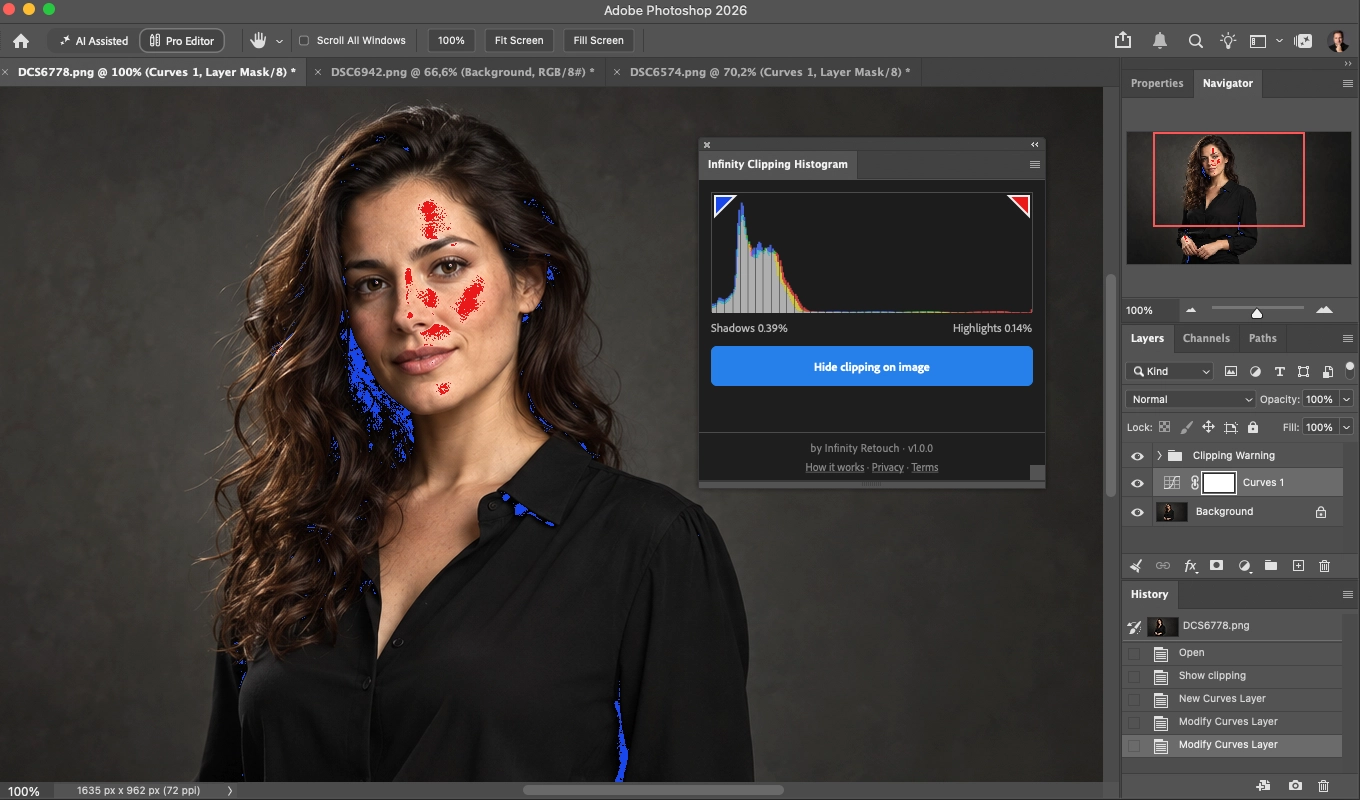
Infinity Clipping Histogram is a panel for Photoshop with an RGB histogram and the two triangles in its top corners.
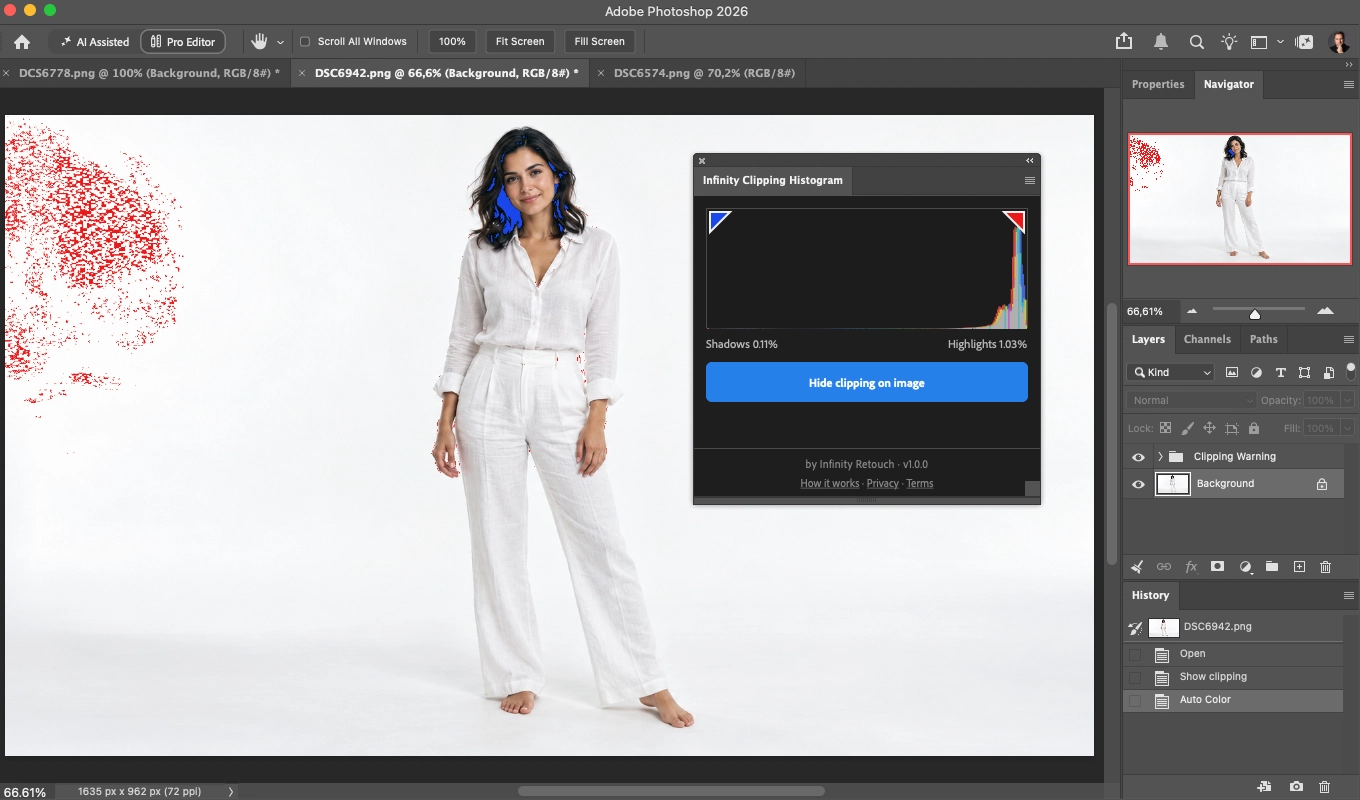
- The left triangle turns blue when shadows clip; the right one turns red when highlights clip. Grey means less than 0.01% of the image clips (see below).
- Click a triangle to paint that side on the photo: blue where a channel is at 0, red where a channel is at 255. Click it again to hide it.
- The button under the graph shows or hides both sides at once.
- Works with photos sent from Lightroom Classic, opened as a Smart Object or with Edit in Photoshop, even before you save them.
- The panel listens for Photoshop's document events and refreshes after them. Double-click the graph to refresh it by hand.
How to read it
The triangles light up above 0.01% of the image. In our tests, photos almost always had a few pixels at 0 or 255: a specular glint, a speck of noise. At one point while editing our test photo, 697 pixels were clipped, 0.004% of the image, and with a one-pixel rule the triangles were lit nearly all the time, which made them useless. 0.01% is about 1,860 pixels on an 18.6-megapixel photo: small, but enough to see.
The percentages under the graph count every clipped pixel in shadows and in highlights. "<0.01%" means some pixels clip, but fewer than one in ten thousand.
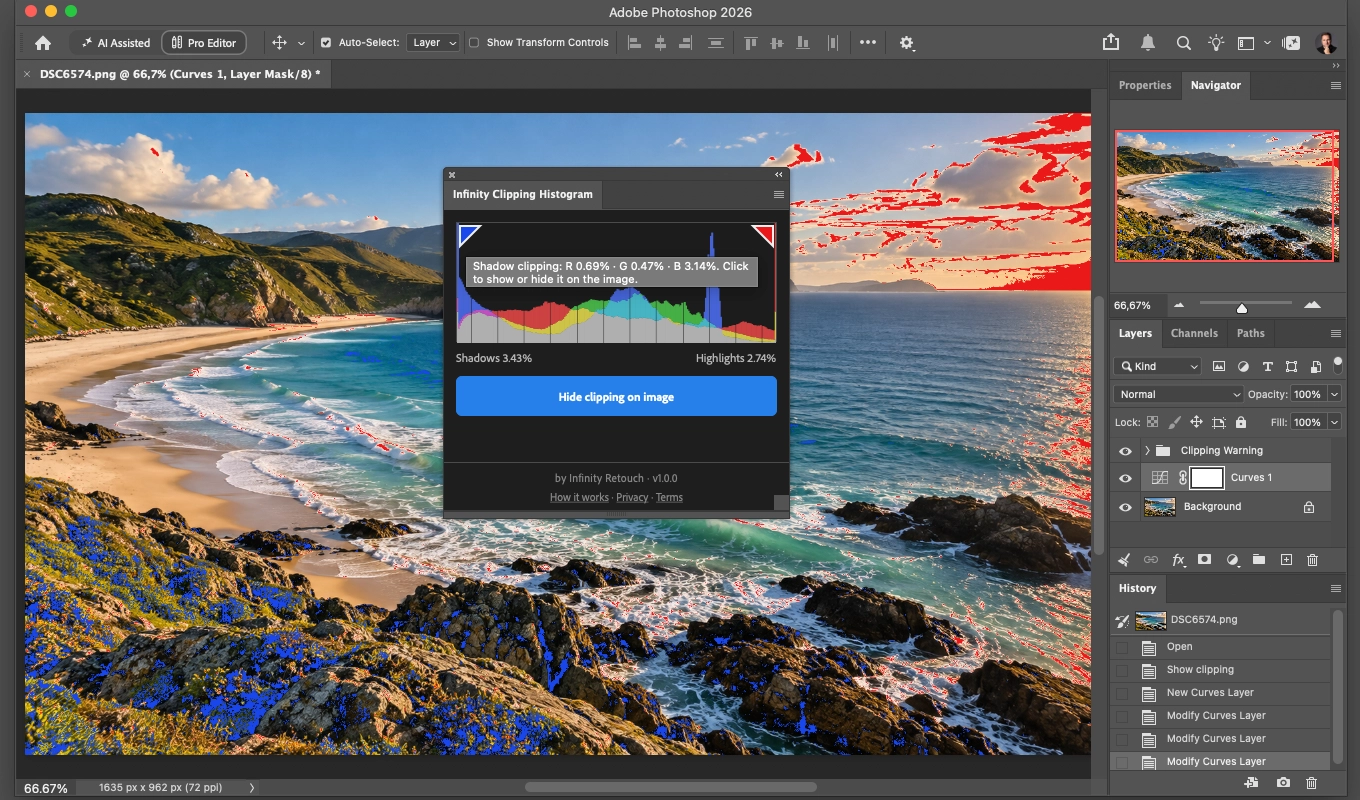
Hover a triangle for the split per channel. It shows which channels clip and how much each one does: red clipping alone on a face calls for a different fix than all three channels clipping on a white wall.
The triangles stay blue and red. Lightroom Classic turns a triangle white when all three channels clip. An early version of this panel applied that rule counting channels across the whole image, and on our test photo the triangles were white nearly all the time: across a whole photo, every channel clips somewhere. So here each triangle keeps its color, and the channel detail lives in the tooltip.
Under the hood
Per channel, like Lightroom. A pixel counts as clipped in the highlights when any of its red, green or blue values is 255, and in the shadows when any is 0.
Every pixel, every time. Photoshop's own Histogram panel can read from the image cache, which Adobe describes as "a representative sampling of pixels in the image" (it has a button to refresh without the cache). For clipping a sample isn't good enough, because averaging pulls a 255 down to 254 or lower. In our tests a downsampled read from Photoshop's cache found 49 clipped highlight pixels where the full image had 4,451, about 90 times fewer. So the panel reads the whole image: 167 to 209 milliseconds per refresh on an 18.6-megapixel photo (measured on a Mac with Photoshop 2026, September 2026).
16 bits when the document is 16 bits. A 16-bit document is read on its own scale, so the percentages match, pixel for pixel, what the warning paints. On a 24-megapixel ProPhoto RGB photo from Lightroom, both came to 257,803 clipped highlight pixels and 1,575,097 clipped shadow pixels; an 8-bit read of the same photo would have counted 280,081 and 1,615,541 (measured September 2026).
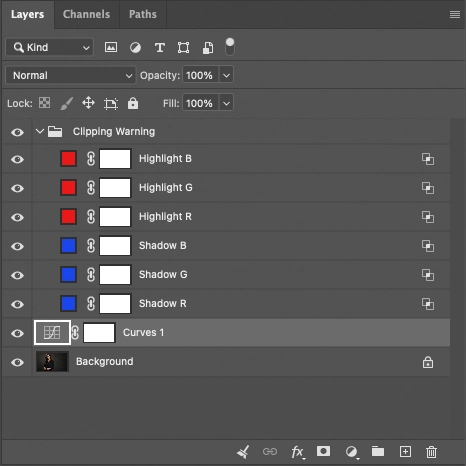
The warning is made of real layers. As far as Adobe's documentation for Photoshop plugins goes, a plugin can't draw over the canvas, so the overlay is a layer group called "Clipping Warning": six Color Fill layers, each one limited by Blend If to the pixels where its channel is at 0 or 255. The group is created when you show the warning and deleted once both sides are hidden.
The numbers ignore the warning. To read the photo, the panel hides the group, reads the pixels and rolls that change back, so the histogram always describes your photo and not the overlay, and reading leaves nothing in the History panel. Showing or hiding the warning, on the other hand, is a single History step that you can undo like any other.
Limits
- RGB documents only. Files in other modes, such as CMYK, Lab or Grayscale, show a message instead of a histogram.
- 32-bit (HDR) documents work, but their percentages are approximate: they depend on how Photoshop converts the image, and they have not been checked against what the warning paints.
- Because the warning is made of layers, saving, exporting or flattening the image while it is on keeps the red and blue in it. Turn it off first.
- This panel measures the RGB values stored in your Photoshop document, in its own color profile.
- Requires Adobe Photoshop 2026, version 27.0 or later (tested on 27.10).
Install it
Infinity Clipping Histogram is free on Adobe Exchange: open its Adobe Exchange page and install it from there. In Photoshop, open it from the Plugins menu.
It needs no account, has no network access and sends us nothing. See our privacy policy.
From the same studio
If you shoot on seamless backgrounds, Infinity Backdrop Cleaner is our Photoshop plugin that cleans seamless backgrounds while preserving real shadows and textures. It has a 7-day free trial.
Sources
- Adobe: Adjust image tone and color in Lightroom Classic (clipping indicators)
- Adobe: Make color and tonal adjustments in Camera Raw (clipping preview)
- Adobe: View histograms and pixel values in Photoshop (image cache)
- Adobe: Levels adjustment in Photoshop (show clipping)
- Adobe: Curves adjustment in Photoshop (show clipping)
Adobe®, Photoshop®, Lightroom®, Creative Cloud® and Camera Raw are registered trademarks or trademarks of Adobe Inc. in the United States and/or other countries. Infinity Clipping Histogram is an independent product and is not affiliated with or endorsed by Adobe Inc.